Your first day
in The Bridge
From choosing a lead to booking your next conversation. Follow one example, then use the screenshots as a reminder.
3 min 33 sec · Narrated in English · On-screen captions
Training example using fictional businesses and reserved example numbers. No prospect is called in this video.
Your first-call reference
Expand a step to see where to tap. Open a screenshot to zoom in.
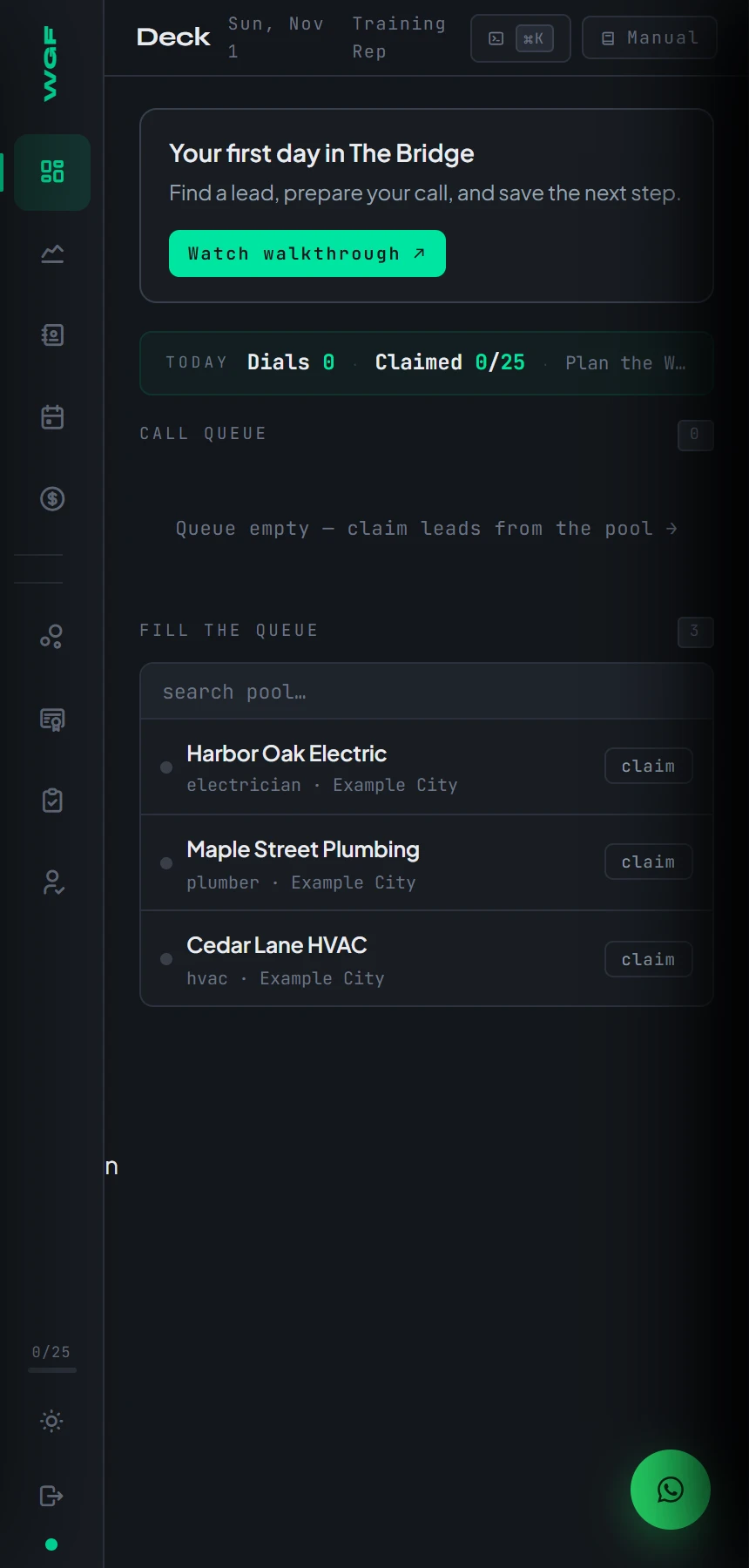
01Find your leads
Start on the Deck. The Call Queue holds the leads you are working. Fill the Queue lists businesses available to claim.
 Open full-size screenshot ↗
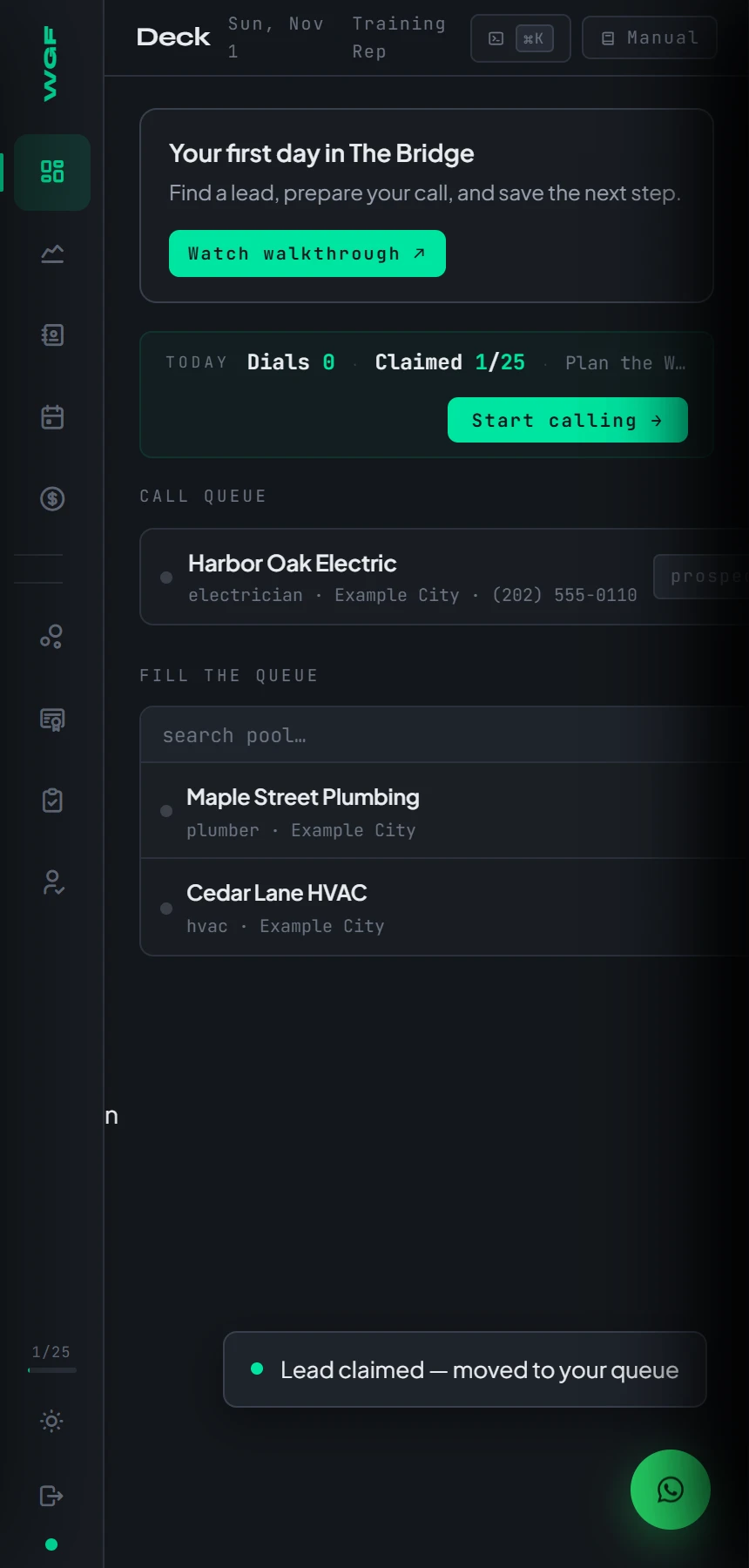
02Claim and open a lead
Tap claim beside a business. Once it appears in your Call Queue, use Start calling or enter to open it in Call Mode.
 Open full-size screenshot ↗
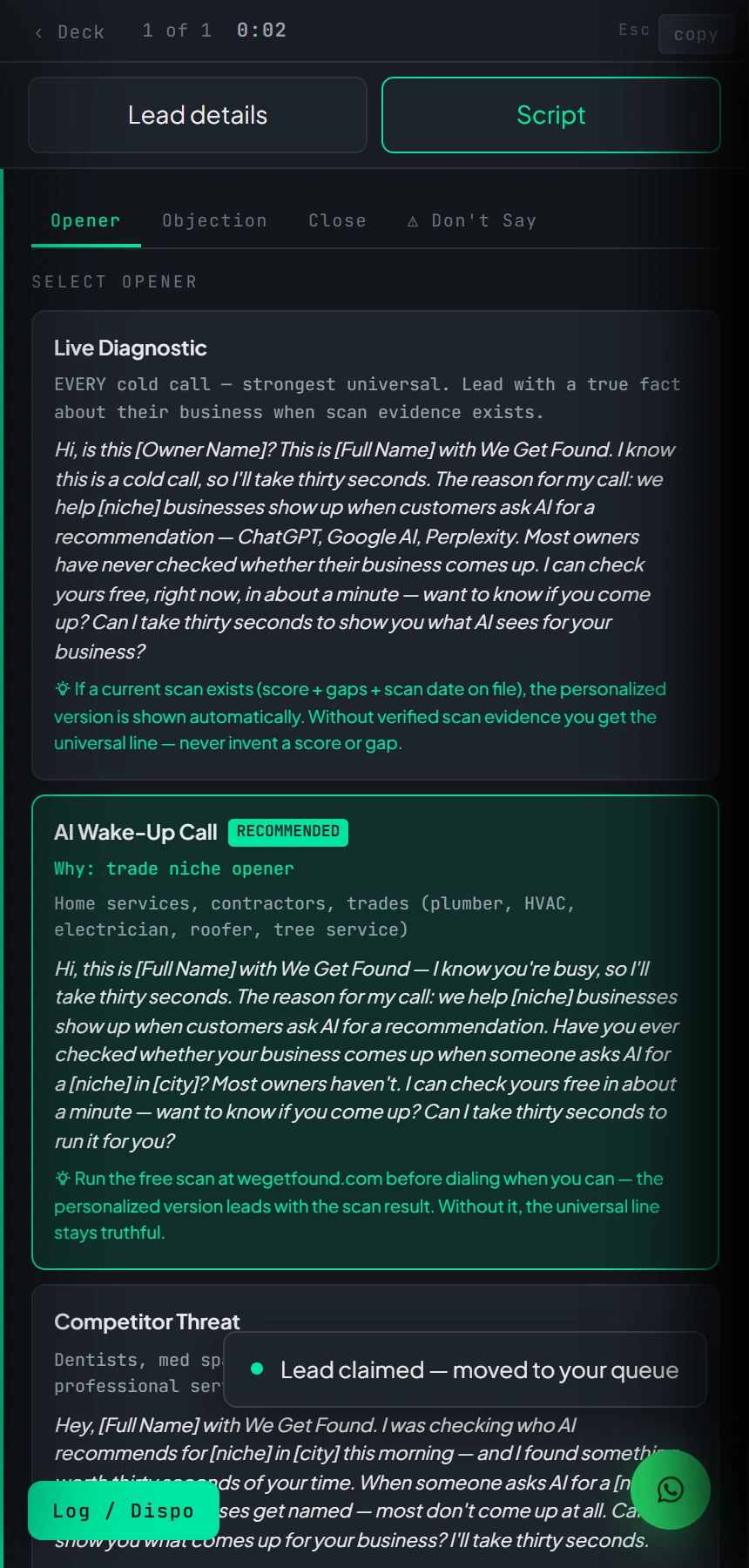
03Prepare your opener
On a phone, switch between Lead details and Script. Review available research and choose an opener. Only quote scan findings when you have supporting evidence.
 Open full-size screenshot ↗
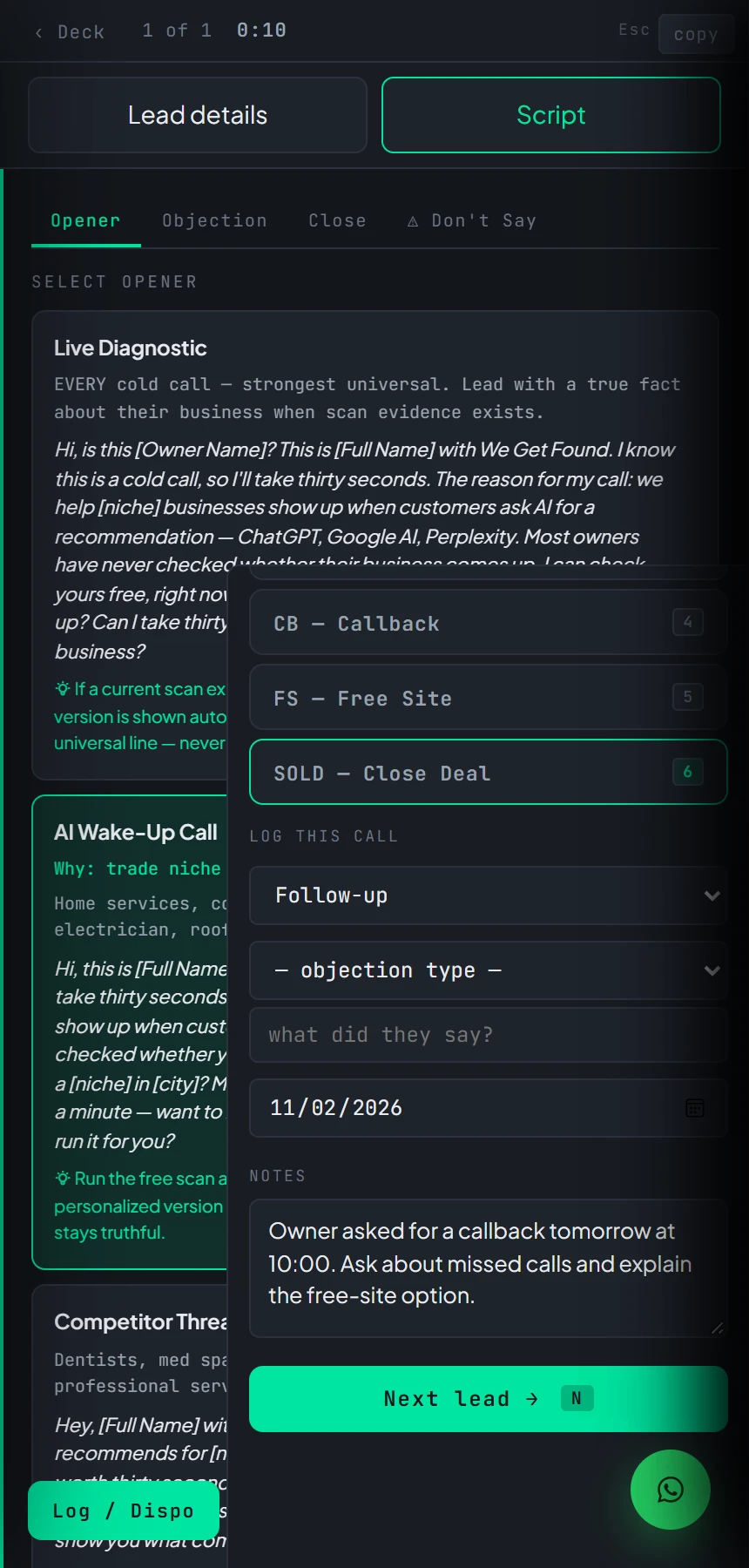
04Log the result and notes
Open Log / Dispo. Select the actual outcome and add what the owner said, what you promised, and the next step. Next lead submits the call outcome. Resolve any save warning before assuming it was logged.
 Open full-size screenshot ↗
05Book the agreed callback
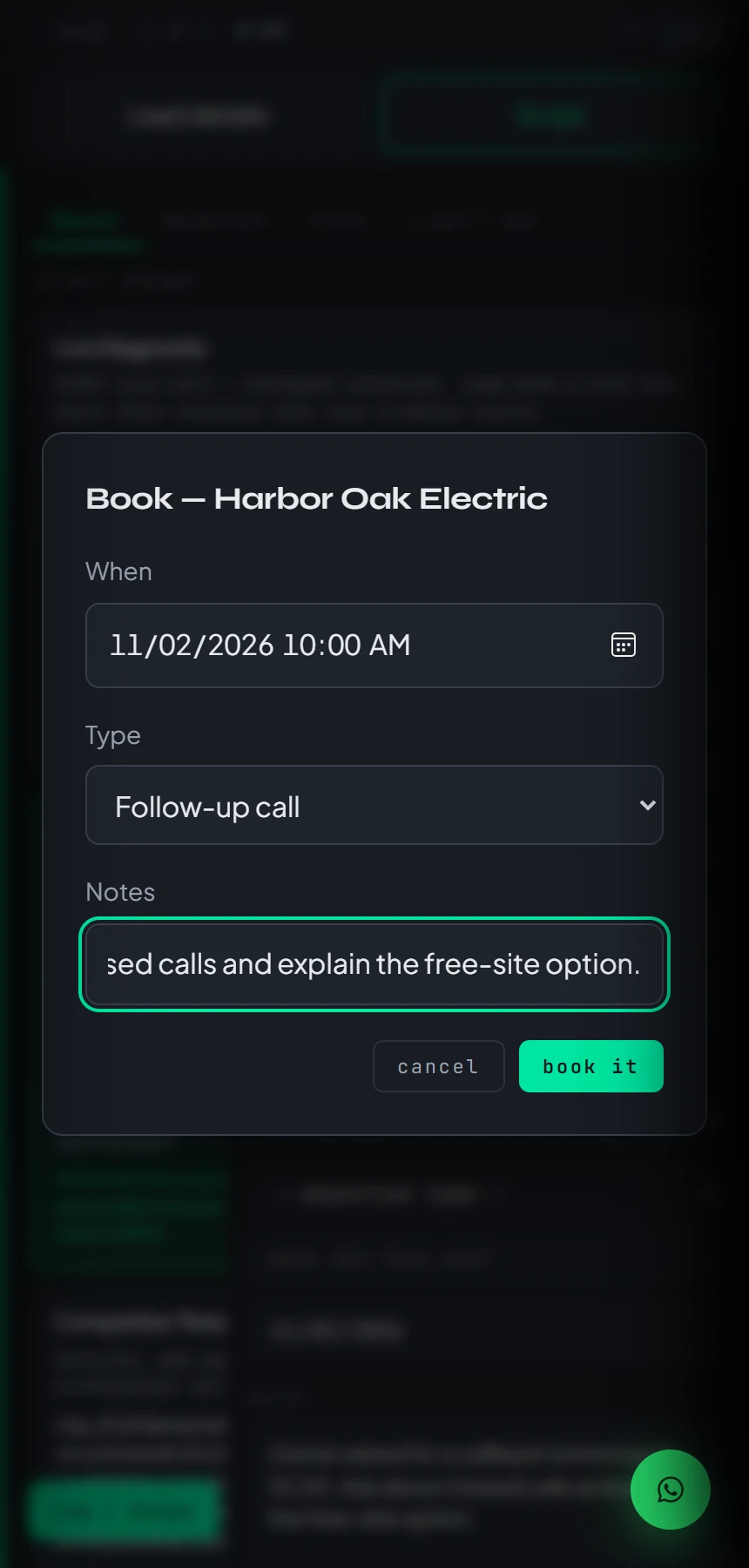
Choose Callback, then Book. In the appointment form, confirm the date and time, select Follow-up call, add the purpose, and tap book it. Always check the final form fields.
 Open full-size screenshot ↗
06Check your Schedule
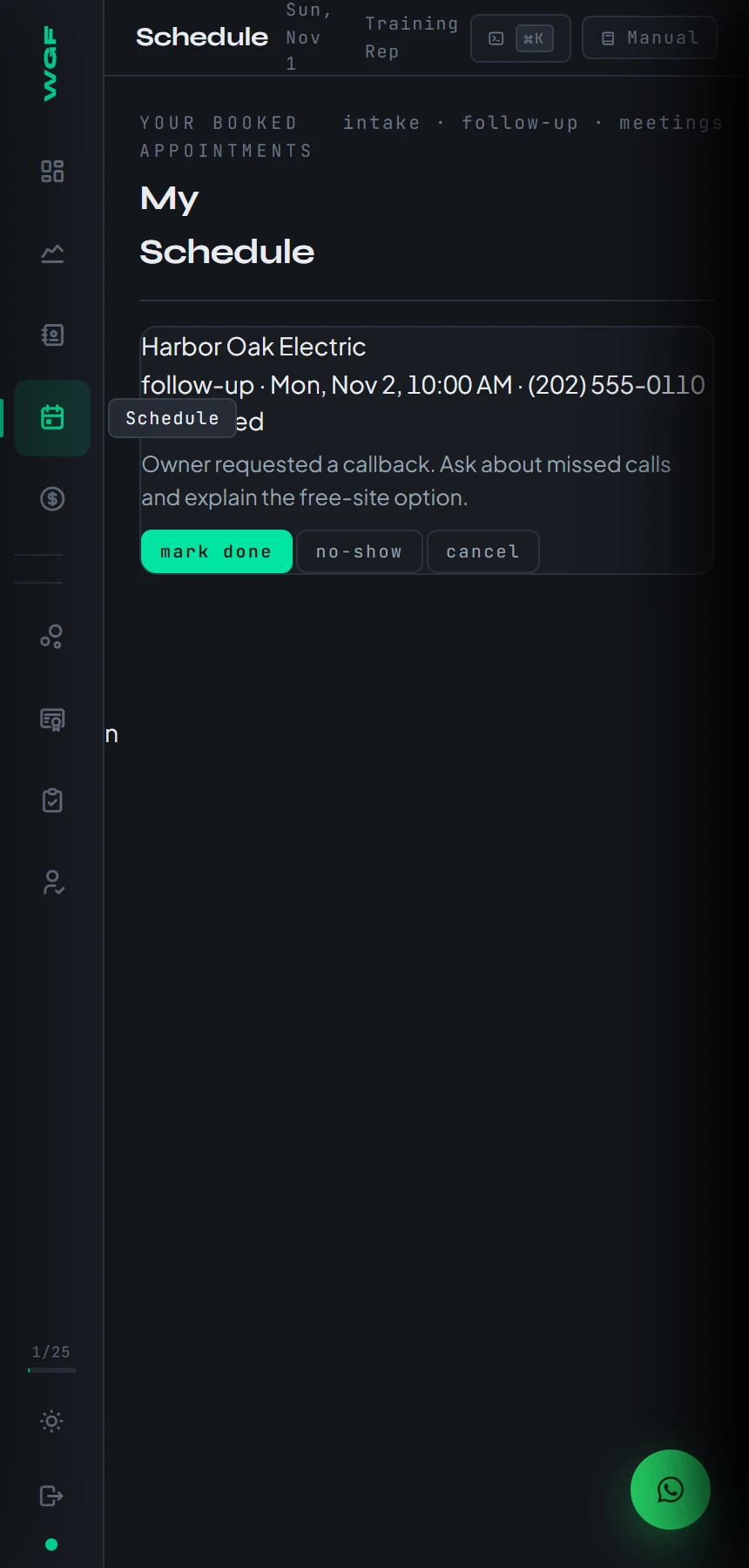
Open Schedule in the left navigation to verify the callback time and notes. Return to Manual for reference guides or use Support when you need help.
 Open full-size screenshot ↗
Read the full transcript
Your first call starts here
Welcome to your office at We Get Found. In this walkthrough, you will take one example business from the lead pool to a prepared call and a booked follow-up. All businesses and phone numbers shown here are fictional training examples.
Sign in to The Bridge
Open we get found dot com slash team, and sign in with your own account. The Bridge is your sales workspace. On a phone, you can also save it to your home screen for easy access.
Start on the Deck
Start on the Deck. The left navigation takes you to your pipeline, client book, schedule, and earnings. Manual opens your reference guides. For your first calling session, focus on the Call Queue and Fill the Queue.
Claim one business
Under Fill the Queue, choose a business you can actually work today. Tap claim beside it. We will use Harbor Oak Electric. Claiming moves that business into your own Call Queue.
Your lead is in the queue
You can now see Harbor Oak Electric in the Call Queue. Tap Start calling, or enter beside the business. Both take you into Call Mode with that lead selected.
Read before you dial
Read the business details before dialing. Check the business name, location, phone number, and any available research. Here, AI visibility has not been checked. Never tell an owner that a scan found something unless you have that evidence.
Keep your script nearby
On a phone, tap Script to bring up your openers. Lead details takes you back to the business. The script tabs also include objections, closing language, and phrases to avoid. Pick the opener that fits, and practice it in your own voice.
Make the call
When you are ready, tap the phone number to open your device's calling app. Keep the script nearby. This walkthrough does not place a call. Our example outcome is that the owner asks you to call back tomorrow.
Open Log / Dispo
After the conversation, open Log slash Dispo. Choose the outcome that actually happened. Callback is for an agreed return call. No answer, voicemail, and not interested have their own buttons. Accurate records help you know what to do next.
Leave useful notes
Add a short note with what the owner said, what you promised, and the next step. For Harbor Oak Electric, we note the requested callback and what we will discuss. Notes save as you leave the field. Check that the outcome is correct before moving on.
Choose Callback, then Book
Tap Callback, then Book to open the appointment form. The appointment form is where you confirm the final date, time, and type. Read those fields carefully before saving.
Confirm the appointment
Set the time you agreed with the owner, choose Follow-up call, and add the purpose of the conversation. Then tap book it. In this example, the callback is for tomorrow at ten. Use the time shown in your own portal and confirm it with the prospect.
Check your Schedule
Back on the Deck, open Schedule from the left navigation. Harbor Oak Electric now appears with the booked time and notes. Check your schedule before each calling block so promised callbacks stay part of your day.
Finish one lead at a time
In Call Mode, Next lead submits the selected call outcome and moves you forward. If the portal reports a save problem, resolve it before assuming the call was logged. Work one lead at a time, with a clear next action.
When the answer is yes
If the owner agrees to a free site instead, use Free Site and follow the intake steps with them. For questions about the offer or the portal, open Manual or use Support. You do not need to memorize every screen today.
You can replay any step
Your first-day routine is simple. Choose one lead, read the details, prepare your opener, make the call, and record the next step. Use the chapter buttons and screenshots below this video whenever you want a quick reminder.